
Getting Started
Learn the basics of using Faxi to access modern services through your fax machine. We'll guide you through registration, sending your first fax, and understanding how the service works.
What is Faxi?
Faxi is an innovative service that connects your fax machine to modern internet services. Send and receive emails, shop online, book appointments, and search for information—all without using a computer or smartphone.
Using advanced AI technology, Faxi reads your handwritten faxes, understands your intent, and connects to the appropriate services. Responses come back as faxes, so you can communicate in the familiar way you prefer.
Key Benefits
Familiar Fax Machine
No need to learn new technology. Use your fax machine just like you always have.
Instant Responses
AI processes your fax in seconds and sends a response back within minutes.
Multiple Services
Access email, shopping, appointments, and information—all through fax.
How to Use Faxi
Step-by-step instructions for sending faxes, formatting requests, and using different services like email, shopping, appointments, and Q&A.
Faxi Fax Numbers
050-5050-8899
Japan
1-302-400-8899
USA
Send your faxes to these numbers to use Faxi services
Basic Steps for Sending a Fax
Write Your Request
Write clearly what you want to do. You can use handwriting or typed text.
Include Your Fax Number
Make sure your fax number is visible so we can send the response back to you.
Send to Faxi
Send your fax to 050-5050-8899 (Japan) or 1-302-400-8899 (USA).
Wait for Response
You'll receive a confirmation fax within 2-5 minutes with the results of your request.
Email / Shopping / Appointments / Q&A
Sending Emails via Fax
Use your fax machine to send emails to family and friends. Your fax number becomes your email address.
Basic Steps for Sending a Fax
- 1Write "Email to:" followed by the recipient's name or email address
- 2Write your message below
- 3Send the fax to our number
- 4The recipient receives your message as an email
Example: "Email to: daughter@example.com" followed by your message
💡 Tips: You can save contacts in your address book. Just write the person's name and we'll look up their email.
Example images coming soon
What to Expect
Response Time
Most requests are processed within 2-5 minutes. Complex requests may take up to 15 minutes.
Confirmation Fax
You'll receive a clearly formatted fax with your results, including a reference number for follow-up questions.
Follow-Up
If you need to make changes or have questions, just send another fax referencing your original request.
Using the Interactive Demo
The Faxi Interactive Demo allows you to experience how our AI-powered system transforms handwritten faxes into digital actions. You can try sample faxes, create your own custom fax, or upload an existing fax image.
💡 First Time Here?
We recommend starting with Sample Faxes to see how Faxi works with pre-made examples before creating your own.
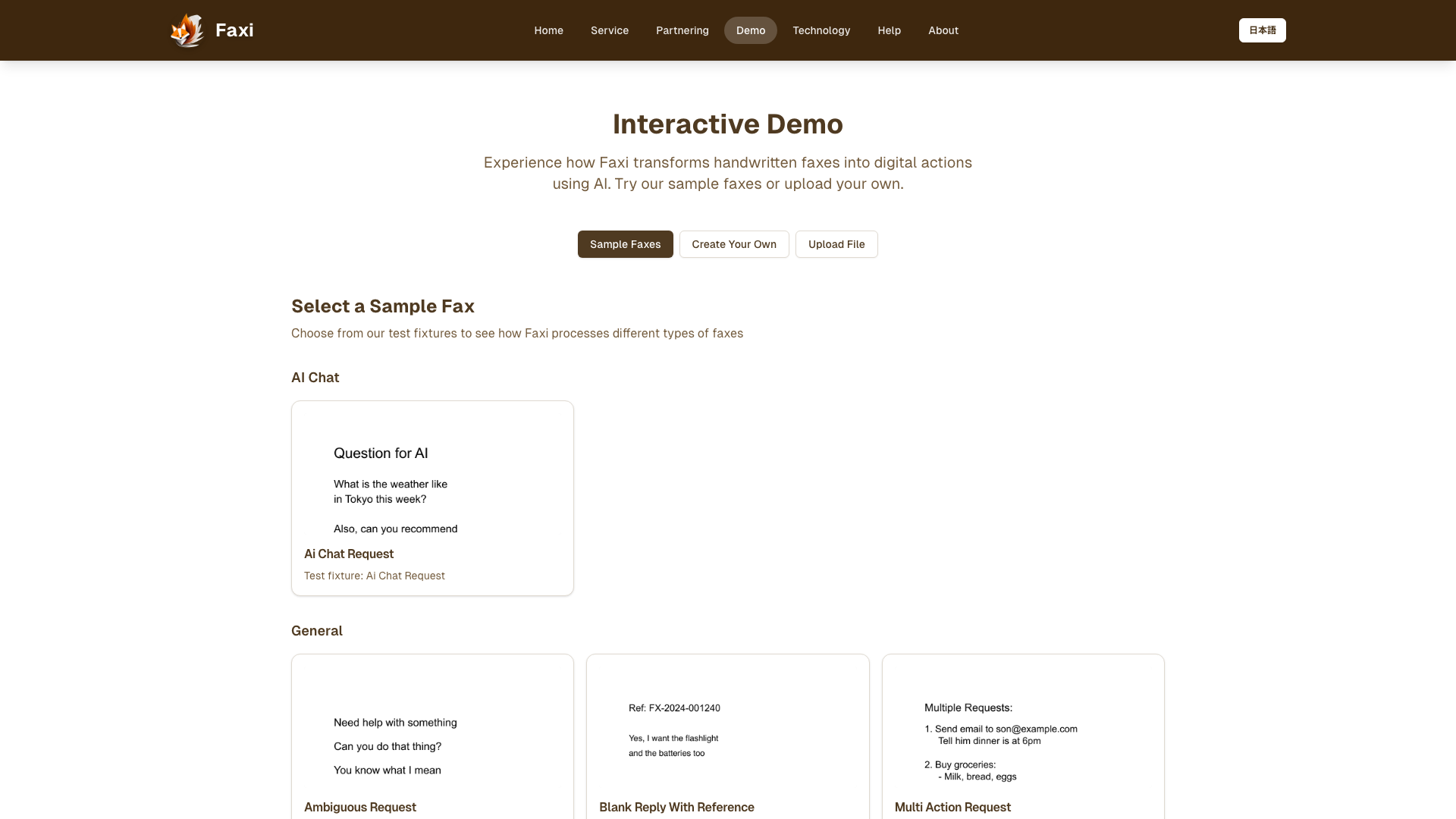
The Interactive Demo homepage
Three Ways to Try Faxi
1. Sample Faxes (Recommended)
The easiest way to experience Faxi is with our pre-made sample faxes that demonstrate different use cases.
How to Use:
- 1. Click the "Sample Faxes" button (selected by default)
- 2. Browse the gallery of sample scenarios
- 3. Click on any sample to preview it
- 4. Click "Process Selected Fax" to see how Faxi interprets it
- 5. View the results showing detected intent and extracted information
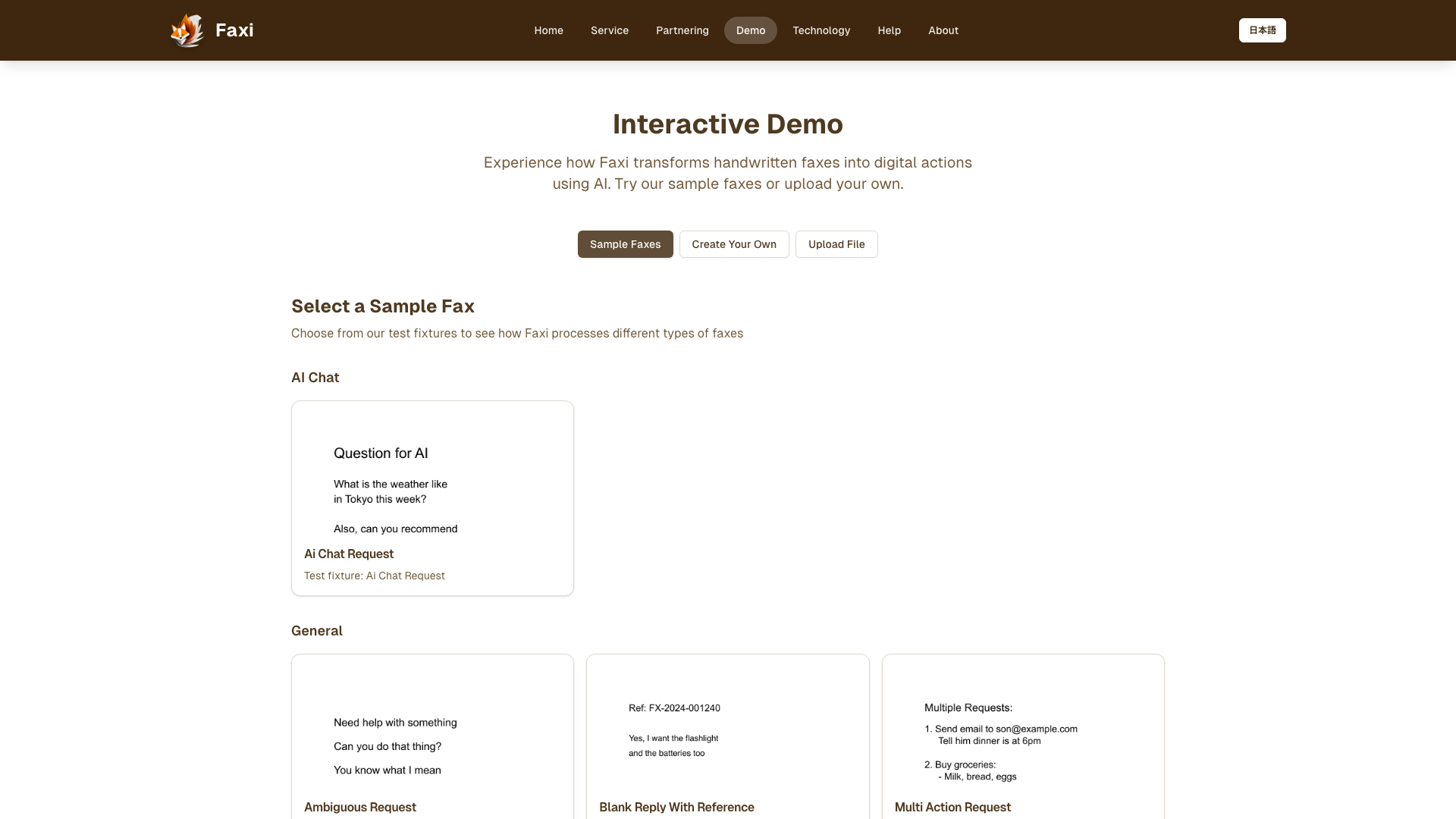
Browse through various sample fax scenarios
✨ Try These First:
- • Email Request - See email composition from handwriting
- • Shopping Request - Watch product search in action
- • Product Selection with Checkmarks - See visual annotation detection
2. Create Your Own Fax
Test Faxi with your own handwritten text using the drawing canvas.
How to Use:
- 1. Click the "Create Your Own" button
- 2. Use the drawing canvas with your mouse, trackpad, or touch screen
- 3. Write your request naturally as you would on paper
- 4. Click "Process Fax" when done
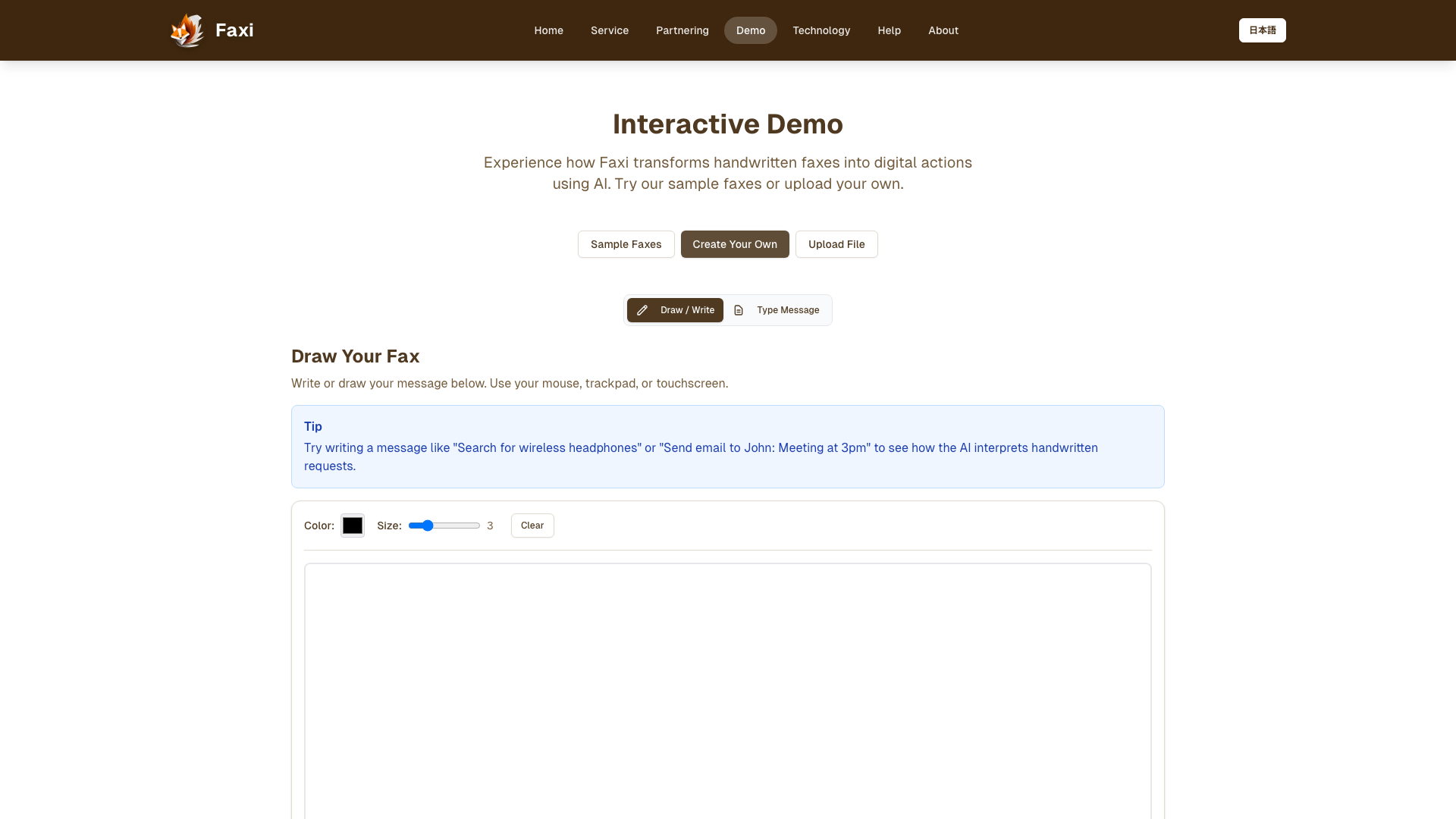
Drawing canvas for creating custom faxes
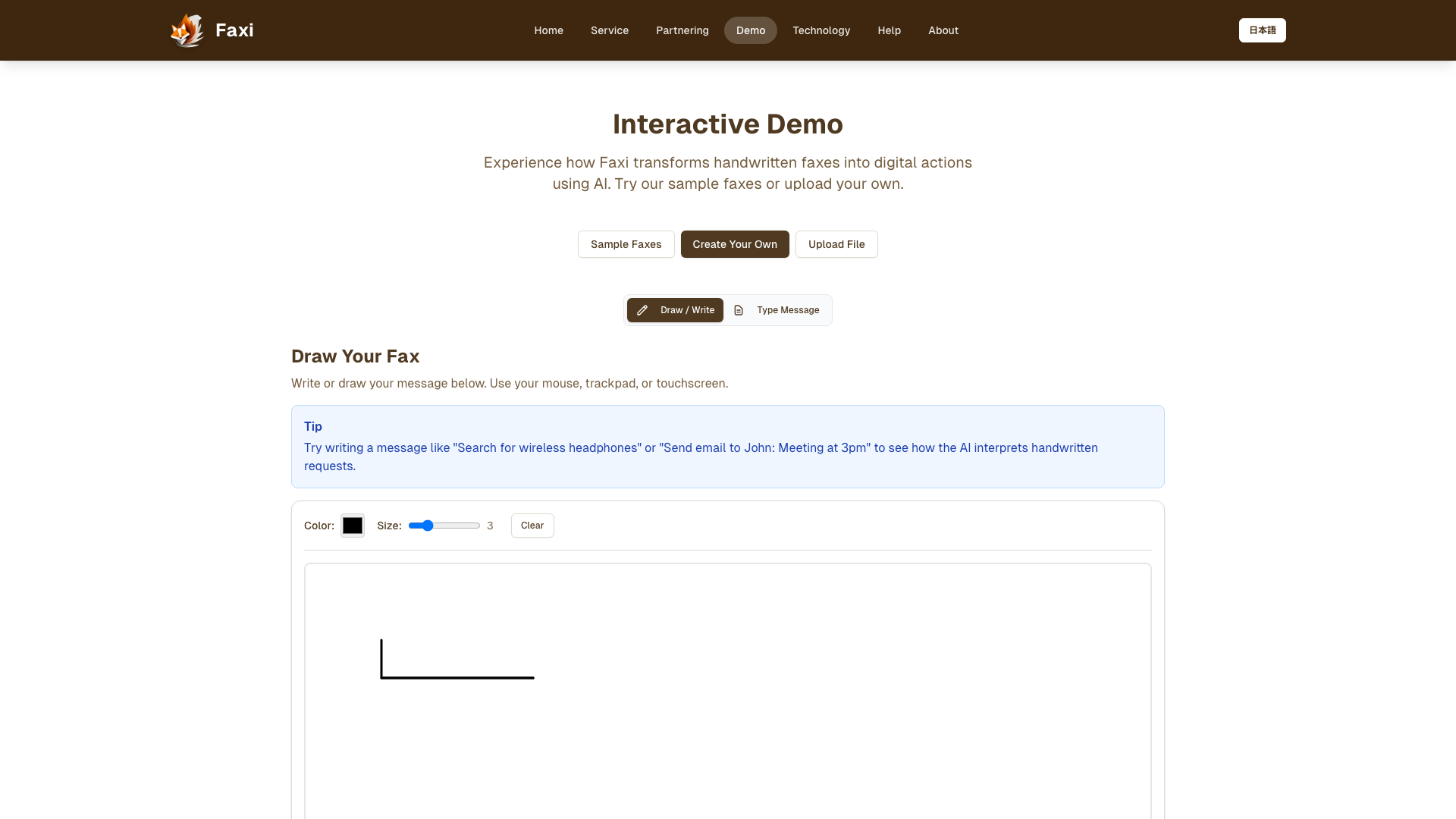
Example of handwritten text on the canvas
💡 Tips for Best Results:
- • Write clearly and legibly
- • Use simple, direct language
- • Include specific details (email addresses, product names)
- • Try adding visual marks like checkboxes or circles
3. Upload a File
Have an existing fax image? Upload it to see how Faxi processes it.
How to Use:
- 1. Click the "Upload File" button
- 2. Click the upload area or drag and drop your file
- 3. Supported formats: PNG, JPG, JPEG, PDF (max 10MB)
- 4. Wait for upload and processing
- 5. View the results
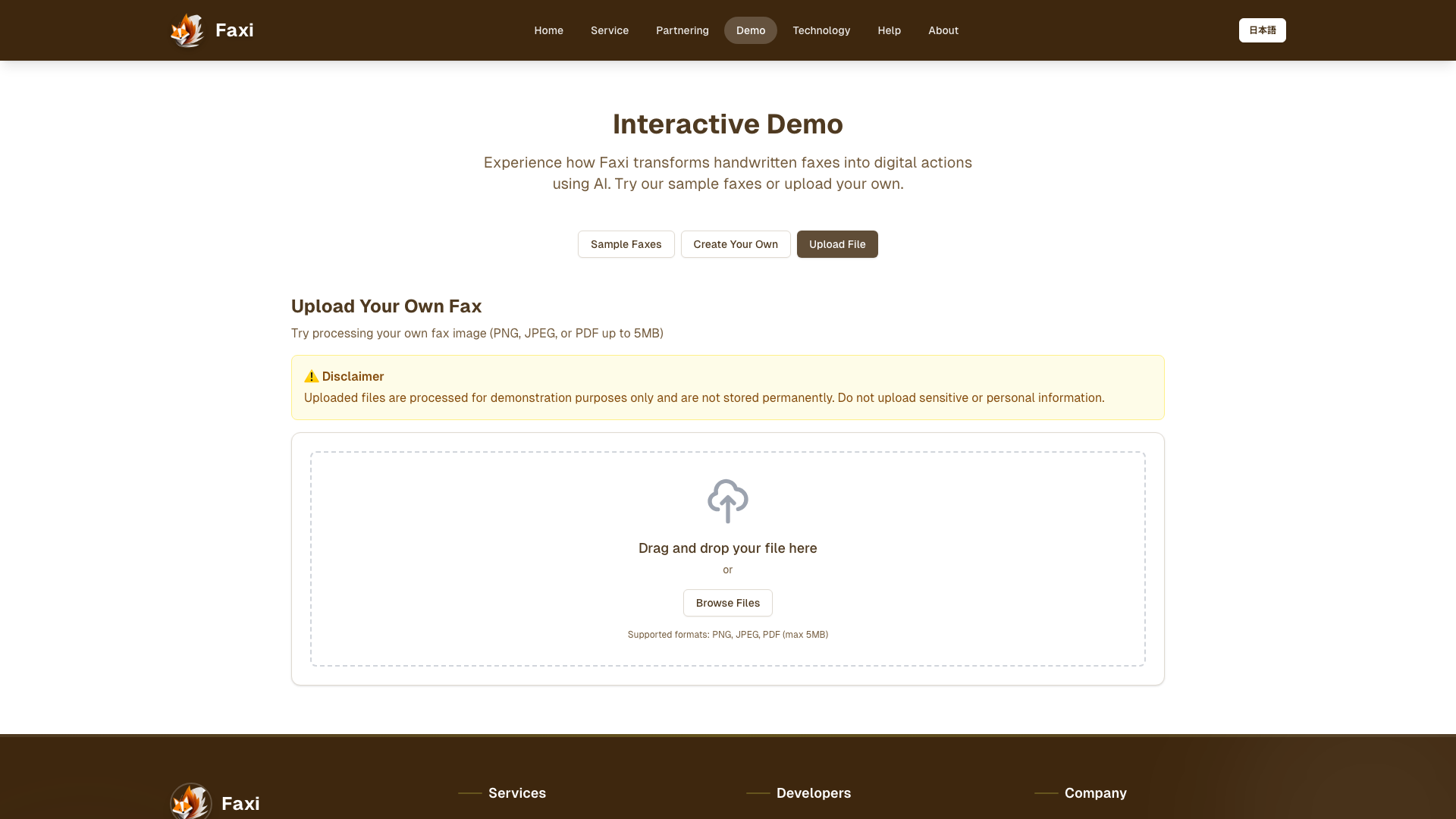
File upload interface
📋 Best Practices:
- • Use clear, high-resolution images
- • Ensure text is readable
- • Avoid excessive shadows or glare
- • Keep content within the frame
Understanding the Results
After processing any fax, you'll see a detailed breakdown of how Faxi interpreted your fax.
1. Intent Detection
What Faxi thinks you want to do:
- 📧 Email - Send or manage emails
- 🛒 Shopping - Browse or order products
- 💬 AI Chat - Ask questions
- 💳 Payment - Manage payment methods
- 📅 Appointment - Schedule appointments
2. Extracted Information
Key details found in your fax: email addresses, product names, questions, payment details, dates, and preferences.
3. Confidence Score
How confident Faxi is in its interpretation:
- 🟢 High (80-100%) - Very confident
- 🟡 Medium (50-79%) - Moderately confident
- 🔴 Low (0-49%) - Needs clarification
4. Planned Actions
What Faxi would do in production: send email, search products, create order, register payment, schedule appointment, or update profile.
Common Issues
❌ "Processing Failed" Error
Possible causes: Image quality too low, text not readable, or server connection issue
Solutions: Try a clearer image, use a sample fax to verify the system is working, or refresh the page
⚠️ "No Intent Detected" Result
Possible causes: Request too vague, handwriting not legible, or missing key information
Solutions: Be more specific, write more clearly, or include necessary details
⏱️ Slow Processing
Normal time: 5-15 seconds
If taking longer: Large file size, server load, or complex request with multiple intents
Frequently Asked Questions
Find answers to common questions about using Faxi, pricing, security, and troubleshooting.
Getting Started
Using the Service
Troubleshooting
Billing & Pricing
Privacy & Security
Troubleshooting
This section will be added in future tasks.